

Leveling the print bed of a 3D printer is a crucial step that directly impacts the quality of your prints. As a 3D print supplier, I've witnessed firsthand how a well - leveled print bed can make the difference between a successful, high - quality print and a failed one. In this blog post, I'll guide you through the process of leveling a 3D printer's print bed, covering the importance, methods, and some useful tips.
Why is Print Bed Leveling Important?
Before delving into the how - to, let's understand why print bed leveling is so important. When you start a 3D print, the first layer is the foundation upon which the entire print is built. If the print bed is not level, the extruder may be too far from the bed in some areas, causing the filament to not adhere properly. This can result in the print detaching from the bed during the printing process, leading to a failed print. On the other hand, if the extruder is too close to the bed in certain spots, it can cause the filament to be squished out unevenly, resulting in a messy first layer and potentially ruining the entire print.
Tools You'll Need
To level your 3D printer's print bed, you'll typically need the following tools:
- Paper or feeler gauge: A piece of regular printer paper or a feeler gauge can be used to measure the distance between the extruder and the print bed.
- Allen wrenches: These are used to adjust the leveling screws on the print bed. The size of the Allen wrench depends on your printer model.
Methods of Leveling the Print Bed
Manual Leveling
Manual leveling is the most common method and is suitable for most 3D printers. Here's a step - by - step guide on how to manually level your print bed:
- Home the printer: Start by homing your 3D printer. This will move the print head and the print bed to their default positions. On most printers, you can do this through the printer's control panel or software.
- Heat up the extruder and the print bed: Heating up the extruder and the print bed is important as the temperature can affect the filament's adhesion. Set the extruder temperature to the recommended value for your filament (usually around 180 - 220°C for PLA), and set the print bed temperature according to your printer's specifications (around 50 - 60°C for PLA).
- Insert the paper or feeler gauge: Place a piece of paper or a feeler gauge under the extruder nozzle. Move the print head to one of the corners of the print bed using the printer's control panel or software.
- Adjust the leveling screw: Use the Allen wrench to adjust the leveling screw at the corner where you're measuring. Turn the screw clockwise to lower the bed or counter - clockwise to raise it. The goal is to achieve a slight resistance when you pull the paper or feeler gauge through the gap between the nozzle and the bed. You should be able to feel a bit of friction, but the paper should still be able to slide smoothly.
- Repeat for all corners: Move the print head to each of the other corners of the print bed and repeat the process of adjusting the leveling screws until you achieve the same slight resistance at all corners. You may need to make multiple passes to fine - tune the leveling.
- Check the center: After leveling the corners, check the center of the print bed. Move the print head to the center and adjust the leveling if necessary.
Auto - Leveling
Some 3D printers come with an auto - leveling feature. This feature uses sensors to automatically measure the height of the print bed at multiple points and adjust the print head's height accordingly. Here's how it generally works:
- Enable the auto - leveling function: In your printer's software or control panel, find the option to enable auto - leveling.
- Run the auto - leveling process: The printer will move the print head to various points on the print bed and use the sensors to measure the distance between the nozzle and the bed. Based on these measurements, the printer will calculate the optimal height for the print head at each point.
- Save the settings: Once the auto - leveling process is complete, save the settings in your printer's memory. This will ensure that the printer uses the leveled settings for future prints.
Tips for Better Print Bed Leveling
- Keep the print bed clean: A dirty print bed can affect the filament's adhesion. Before leveling the bed, clean it with isopropyl alcohol to remove any dust, grease, or residue.
- Use a calibration print: After leveling the print bed, it's a good idea to run a calibration print. This can be a simple single - layer square or a more complex calibration model. Check the first layer of the calibration print to see if the leveling is accurate. If the first layer looks uneven or the print doesn't adhere properly, you may need to re - level the bed.
- Be patient: Leveling the print bed can be a time - consuming process, especially if you're doing it manually. Take your time and make small adjustments to achieve the best results.
Our 3D Print Products
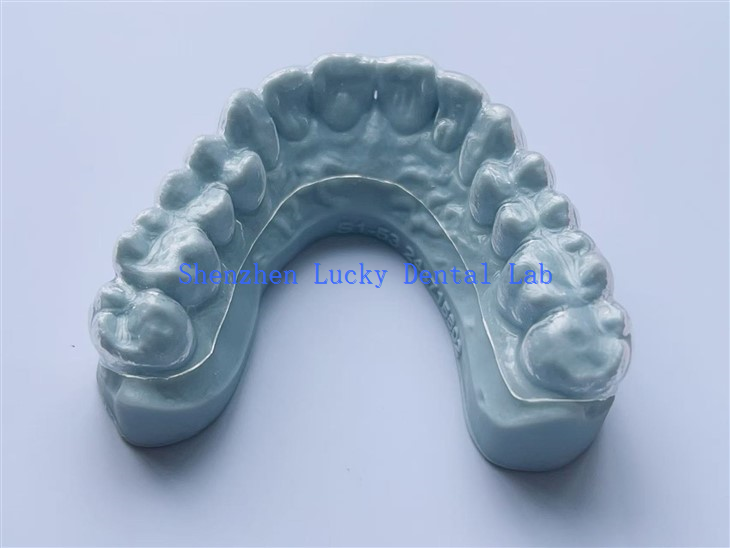
As a 3D print supplier, we offer a wide range of high - quality 3D print products. For example, we have High Quality 3D Print PFM CoCr Bridge, which is known for its excellent strength and durability. Our Natural 3D Print Dental PFM CoCr Crowns are designed to provide a natural look and fit. And if you're in the dental lab business, our 3D Print Bleaching Tray Dental Lab products can meet your specific needs.

Conclusion
Leveling the print bed of a 3D printer is an essential skill for any 3D printing enthusiast. Whether you're using a manual or an auto - leveling method, taking the time to ensure a properly leveled print bed will result in better - quality prints. If you have any questions about 3D printing or our products, don't hesitate to contact us for further information and procurement discussions.
References
- "3D Printing for Dummies" by John Graham - Cumming
- Various 3D printer user manuals and online forums for 3D printing enthusiasts.